Your personal photos deserve to stay personal.
Who can see them? What happens if you lose your phone? Here are the answers, without the technical jargon.
Privacy you can understand.
Your library is private. Even on a family plan, you share storage space — not your photos. Other members, including the person paying, cannot browse your library. Read our privacy policy.
Can Archivios see my photos?
Turn on end-to-end encryption to lock new backups before they leave your device. Even Archivios cannot see inside those files. This extra protection is optional and does not change older backups.
Are my photos used for ads or AI?
No. We do not scan your photos for advertising, use them to train AI, or sell your data. These promises apply whether or not you turn on the extra protection.
What if I lose my phone?
Your recovery code helps you unlock protected backups on a new device. Save it somewhere safe outside your phone. If you lose every device and every recovery option, we cannot unlock those backups for you.
What if I leave the extra protection off?
Your backups still use encrypted connections and storage — protection while files travel to us and while they are stored. The optional setting adds a lock that prevents Archivios from reading the new files themselves.
What can I do to help?
Keep a passcode on your phone, install its updates, and only sign in on devices you trust. Keep a second copy of photos you could never replace.
What information can Archivios still see?
Account details, photo dates, and saved locations remain readable, even with the extra protection on. Dates and locations help organize your library. Our privacy policy explains what we keep.
Can someone I trust help me get back in?
Yes. Set up trusted recovery contacts in advance. Two contacts can help you regain access if you lose your code. Being a recovery contact does not give someone access to your photos.
3 ways to unlock your photos on a new device
Changing phones? Use one of these options to get back into your protected backups. Set up your recovery options before you need them.
Your recovery code
Type it in on the new device.
Scan a QR code
From a device that's already unlocked — no typing needed.
Ask recovery contacts
Two trusted contacts can help you regain access without the code at all.
See it in the app
Every screen, and why it's there.
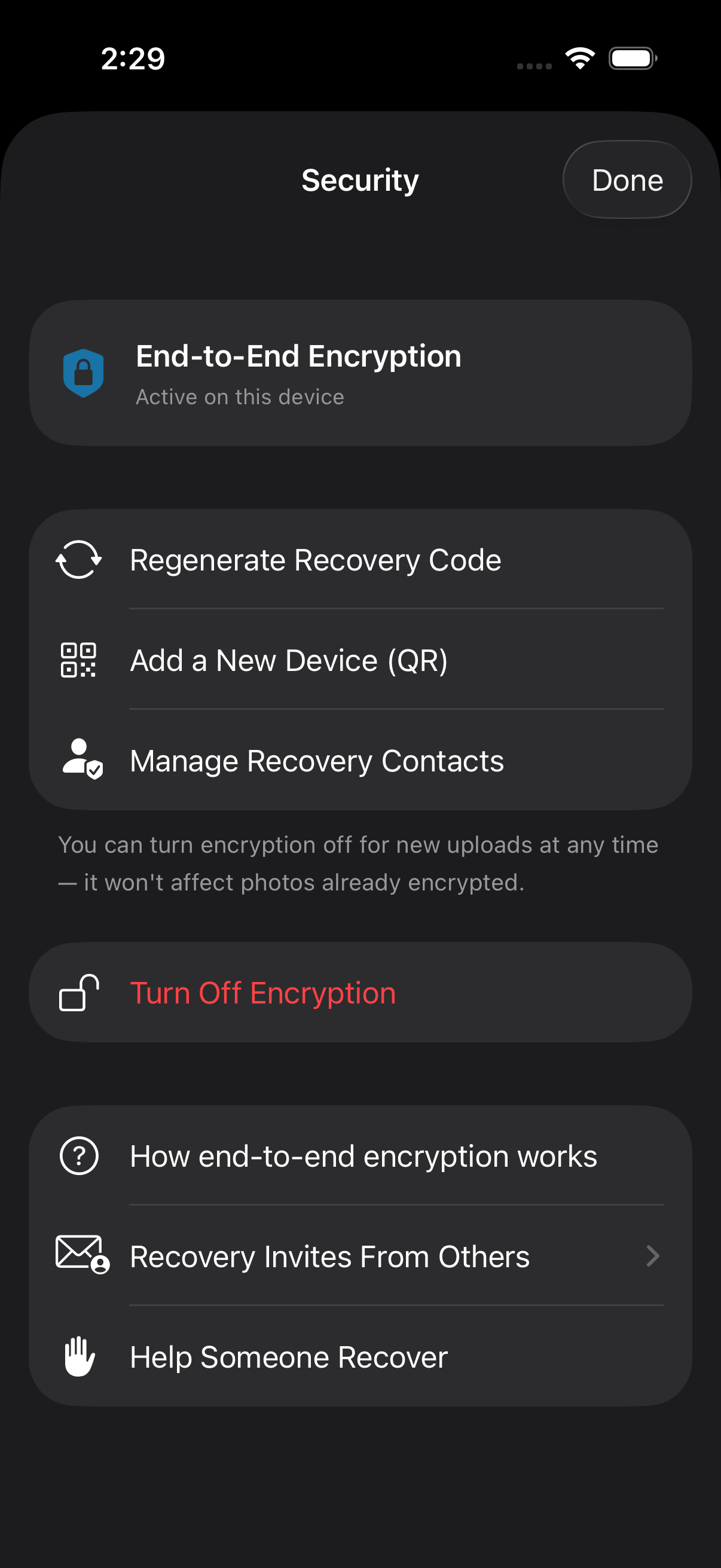
Security settings — one place to manage everything
Check whether extra protection is on, manage your devices, and find ways to regain access from your security settings.
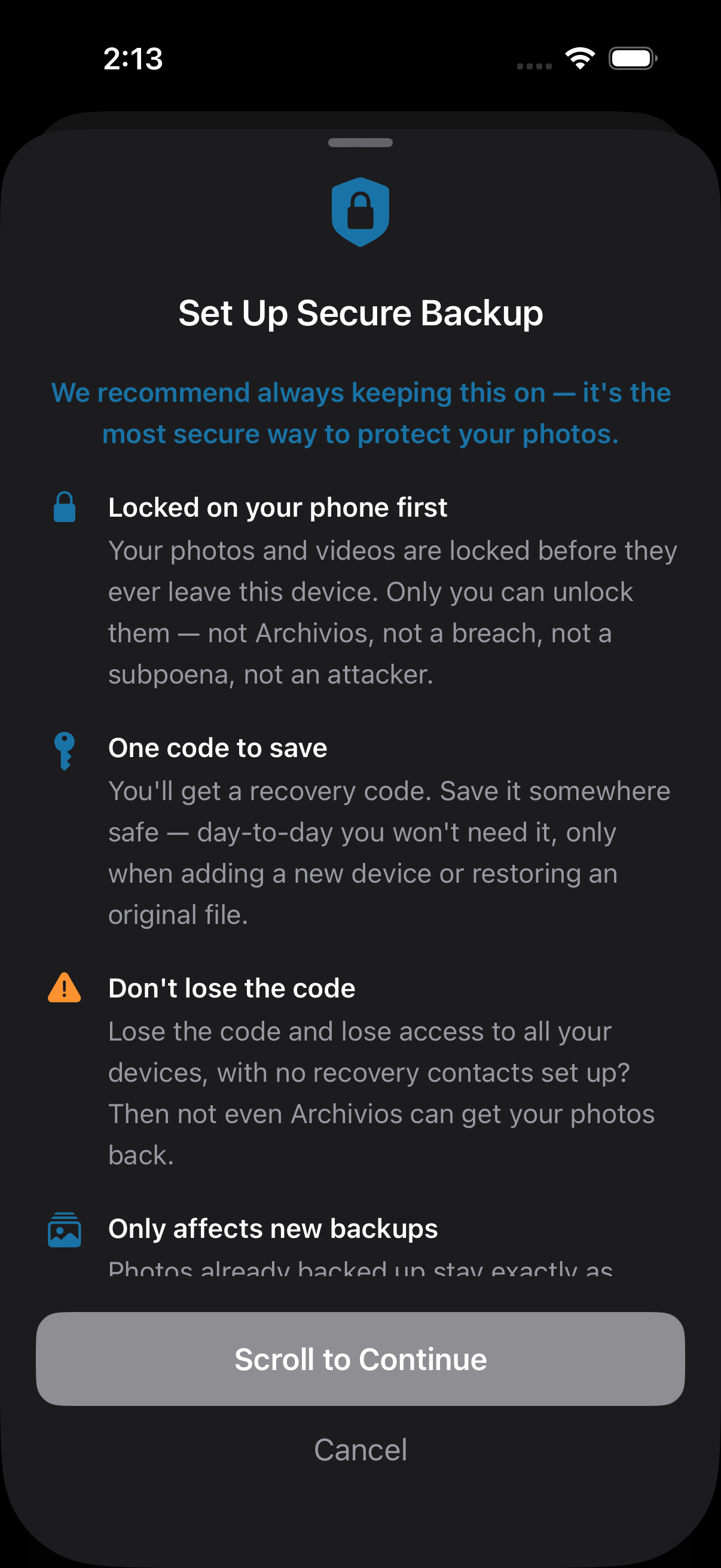
Turning on encryption, explained in plain language
Read what the extra protection does and why saving your recovery code matters before you turn it on.
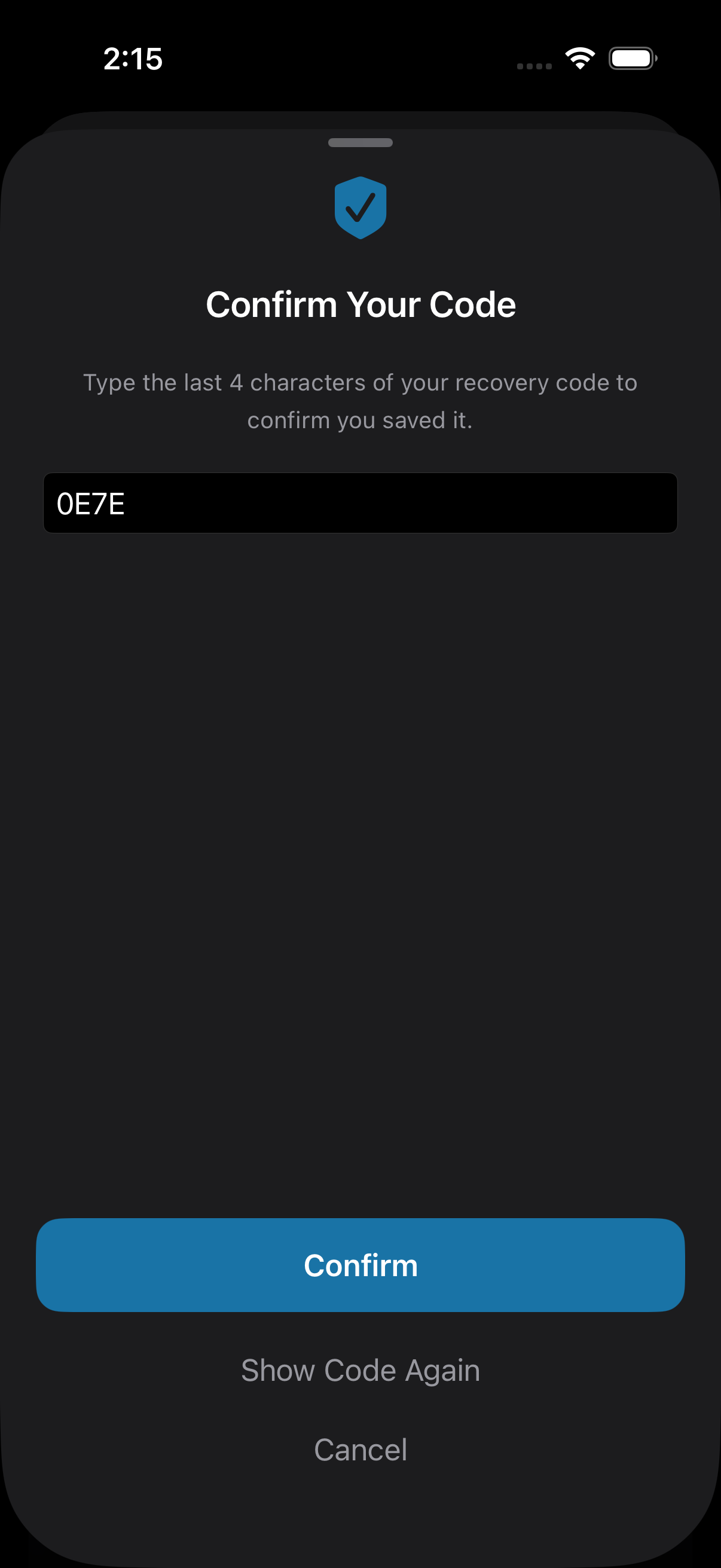
Confirming you saved your recovery code
A quick re-entry check catches 'I forgot to actually save it' mistakes while they're still easy to fix.
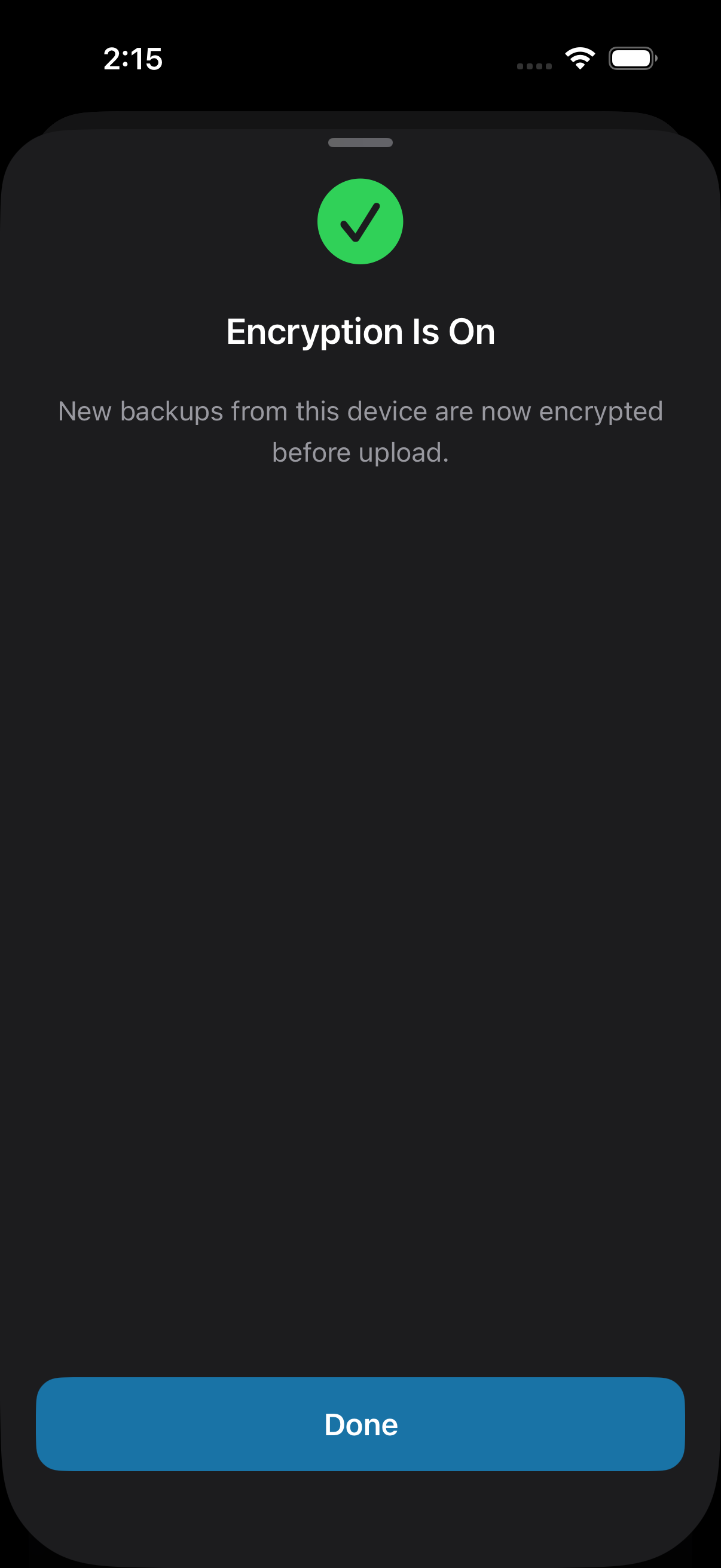
Encryption is on — new backups are locked automatically
New backups are now locked before they leave this device. Photos backed up earlier are unchanged.
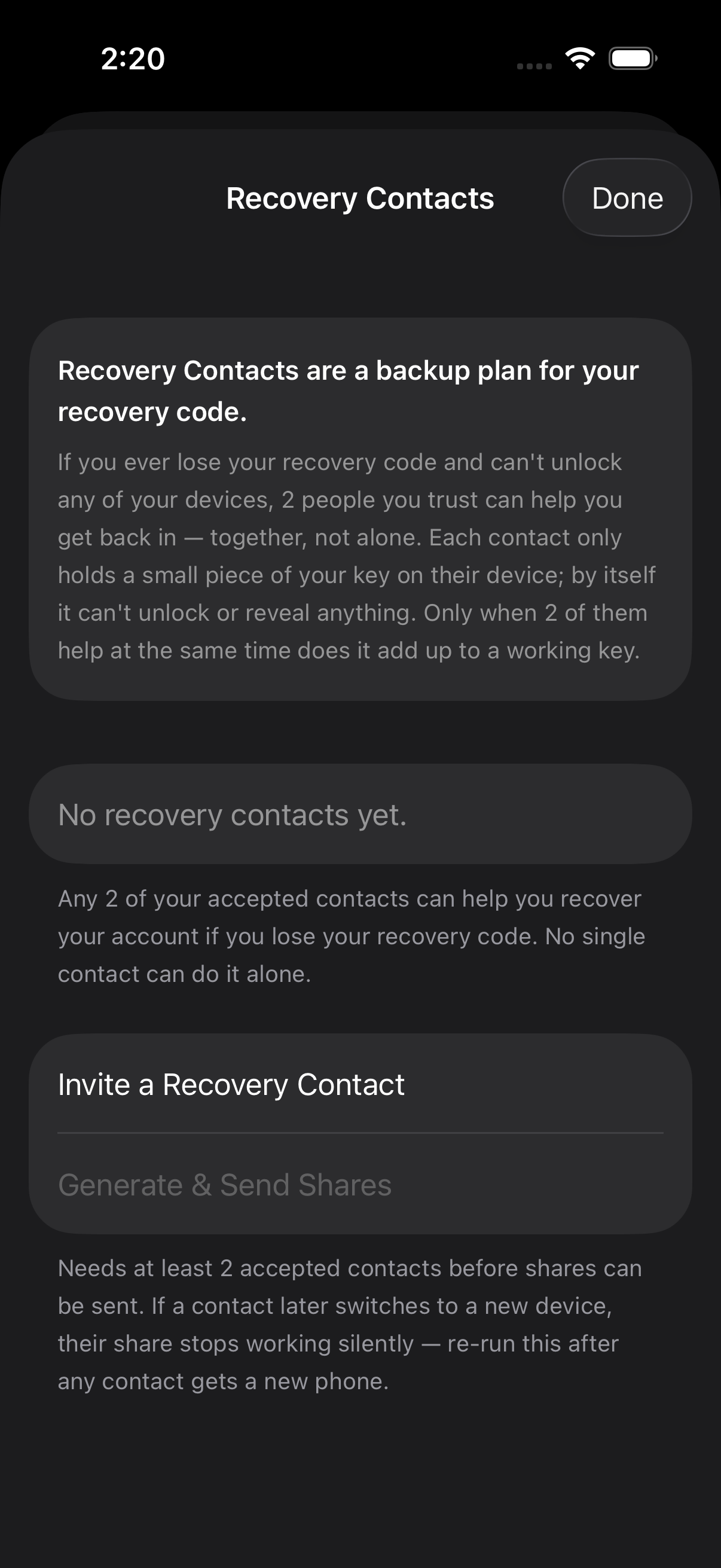
Adding trusted recovery contacts as a safety net
Choose people you trust to help you regain access. One contact alone cannot unlock your protected backups.
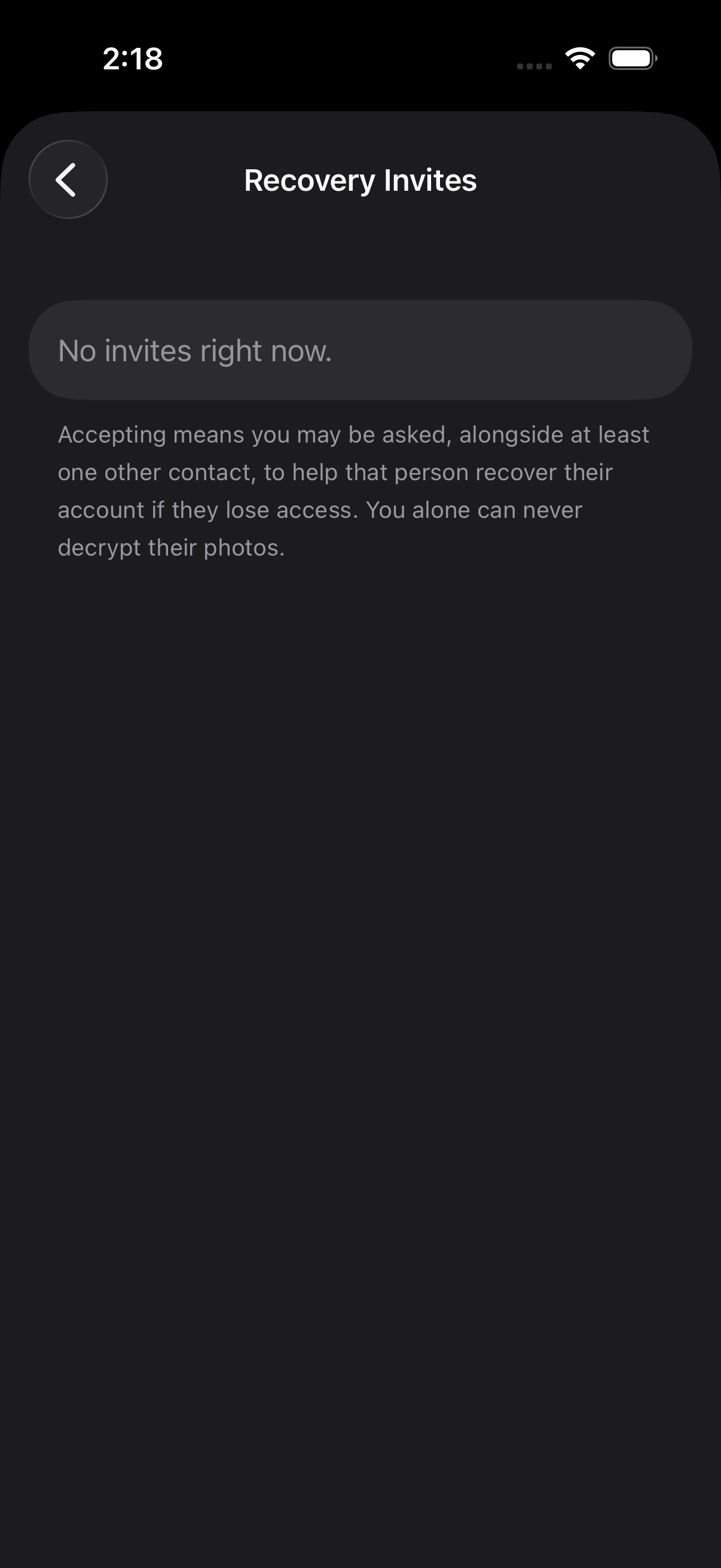
Reviewing a recovery contact invite
Accepting means you can help someone regain access later. It does not let you see their photos.
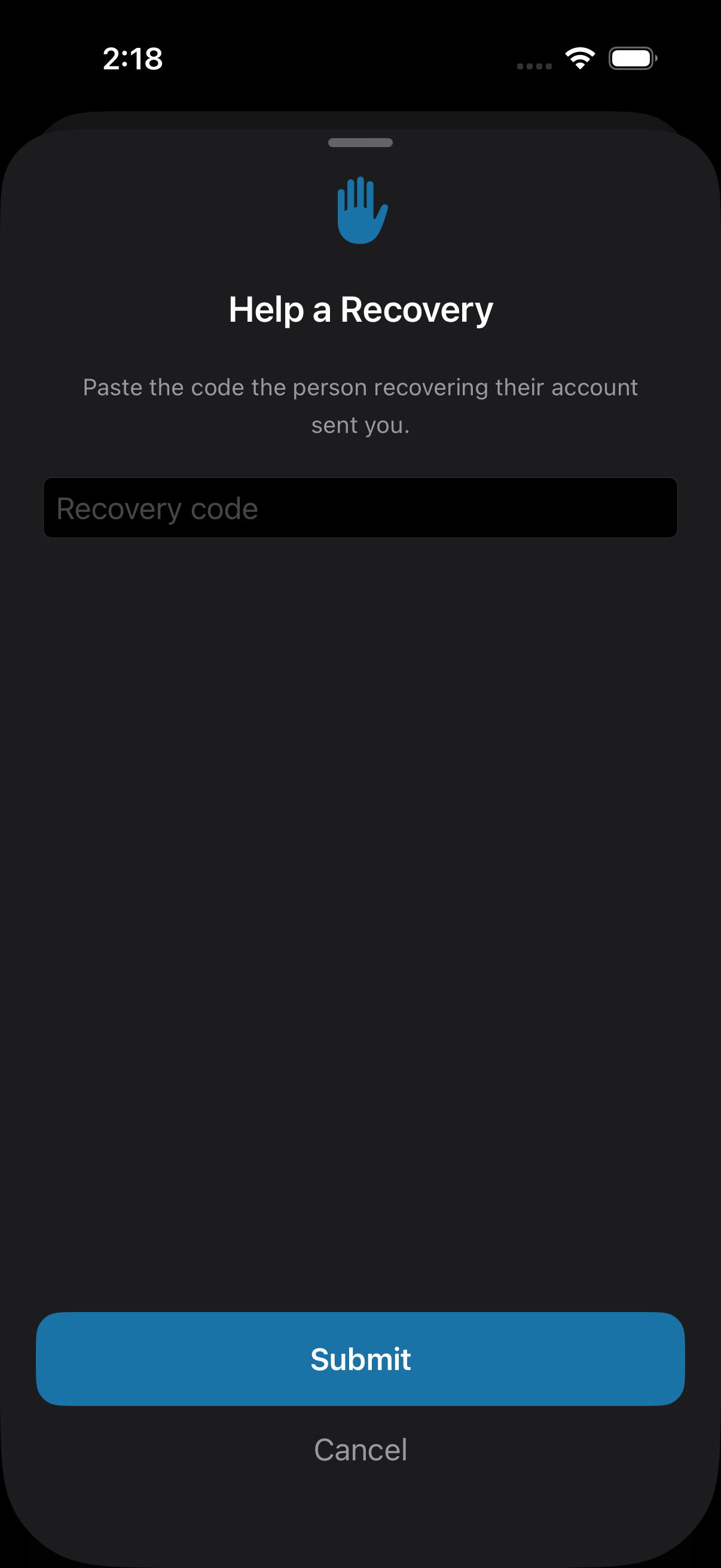
Helping a trusted contact recover their account
Follow the recovery steps to help someone get back in, without seeing their photos.
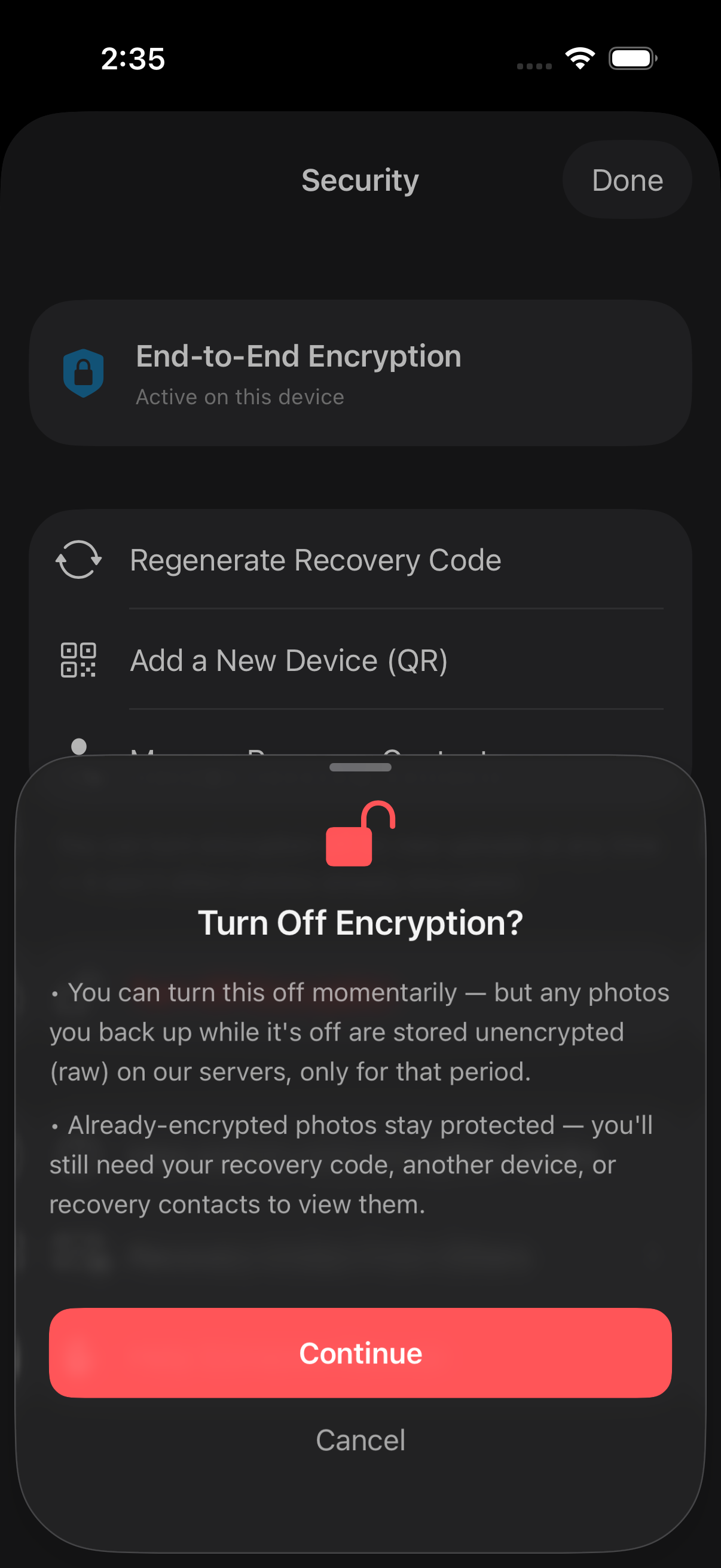
Pausing encryption requires a deliberate confirmation
A two-step, explicit confirmation — so you always know exactly what stays protected and what doesn't before pausing.
Common questions
What is the recovery code, really?
It is a code you save when setting up the extra protection. You can use it to regain access to your protected backups on a new phone or other device. Keep it somewhere safe outside your phone, and do not share it.
What happens if I lose the code?
You may still regain access using an already-unlocked device or trusted recovery contacts you set up earlier. But if none of these options are available, we cannot unlock your protected backups for you. Save your code and set up another recovery option before you need it.
Can I turn encryption off temporarily?
Yes. New backups made while it is off will not have this extra lock. Photos already protected keep their protection. Turning it back on protects future backups, not files uploaded while it was off.
What does "regenerate recovery code" do?
It replaces your old recovery code with a new one. Your photos do not change. Save the new code somewhere safe: the old one will no longer work.
Does turning encryption on protect my old photos too?
No — only new uploads from that point forward. Photos already backed up before you turned it on stay exactly as they were.
See also: FAQ · Encryption, explained without the jargon · We can't read your photos or videos